



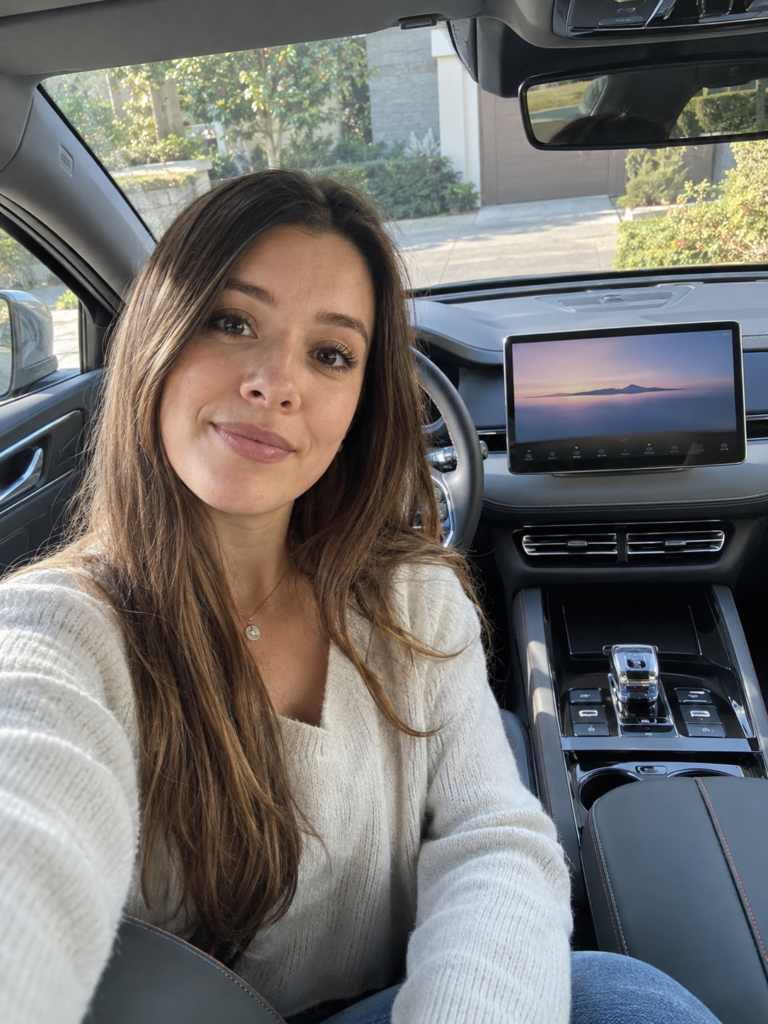
You collect your new BYD, pair your phone, find Drive, and settle into the quiet cabin. The basics make sense quickly. Then, several days later, you discover that a swipe can change the climate without leaving CarPlay, your phone may be able to prepare the cabin before you arrive, and the parking cameras can do more than show a simple rear view.
These are the BYD features new owners often miss because they are spread across the touchscreen, BYD app, charging menu, key setup, and model-specific owner’s manual. The seven below are worth checking during your first week. Some save time every day; others become valuable on a road trip, at a campsite, or in a tight parking space.
This guide is suitable for overseas-market BYD vehicles only when each function is confirmed for the exact car. It is not a claim that all export BYDs share the same equipment. BYD’s European and Australian owner resources explicitly say that app services, V2L, digital keys, and manuals vary by model, category, region, production date, compatible device, and software version. Treat the menu paths below as discovery prompts, then confirm them in the current local owner’s manual and vehicle specification for your VIN.
Table of Contents
Check Your Exact BYD Before Trying the List
An Atto 3, Dolphin, Dolphin Surf, Seal, Seal U, Sealion 5, Sealion 7, Han, Tang, or Shark may share familiar BYD software, but that does not make every function universal. Even two vehicles with the same model name can differ across countries, model years, and over-the-air (OTA) versions.
The examples below have an overseas official source, but they are examples—not a compatibility chart:
| Feature | Overseas evidence checked | What it does not prove |
|---|---|---|
| Three-finger climate and voice control | European Atto 2 announcement | That older Atto 3, Dolphin, Seal, or another regional BYD has the same gesture or language support. |
| App, app-based key, and charging reservation | European Dolphin and Seal U DM-i manuals; BYD Australia app guide | That cloud activation, app controls, or phone compatibility are available in every country. |
| V2L and panoramic camera views | European Dolphin specification and Seal manual | That another BYD has the same V2L outlet, output limit, 360° hardware, camera functions, or screen layout. |
Before assuming a feature is missing, check four places:
| What to check | Why it matters |
|---|---|
| Local owner’s manual | It reflects the equipment and warnings for your market more accurately than a global video. |
| Vehicle settings and app list | A function may sit inside a camera, energy, or vehicle-control app rather than the main settings page. |
| Swipe-down shortcut panel | Some frequently used controls appear here rather than in the full menu. |
| BYD app and dealer activation | Connected services may remain unavailable until the vehicle is correctly bound to the owner’s account. |
Screenshots from another owner can still help you recognize an icon, but they are not proof that your car has the same hardware or software. This matters especially if the original infotainment system has been replaced. Our guide to BYD screen replacement and upgrades explains why the display, controller, software, cameras, and vehicle controls must work as one system.
1. Build a Faster Control Panel—and Learn the Three-Finger Climate Gesture
The most useful “hidden” BYD feature may be hiding in plain sight. On supported DiLink systems, swiping down from the top of the touchscreen opens a shortcut panel. Depending on the vehicle, it can include connectivity, brightness, mute, screen orientation, and vehicle controls. Some layouts also let you rearrange widgets or keep frequent functions close to the home screen.
That is useful when a setting you need regularly is buried several taps deep. Arrange the panel while parked, placing your most-used controls where they are easy to recognize. Do not use it as a way to defeat safety functions; the goal is to reduce distraction when operating legitimate controls.
Some BYD touchscreens add an even faster climate shortcut:
- Swipe up or down with three fingers to change the temperature.
- Swipe left or right with three fingers to change the fan speed.
BYD officially documents these gestures for the European Atto 2, including when Android Auto or Apple CarPlay is displayed; they also appear in current manuals for selected models. That makes the gesture a worthwhile check for an overseas owner, not a universal BYD instruction. Your screen may use a different interface or have no gesture support, so try it only while parked and stop if it does not work as expected.
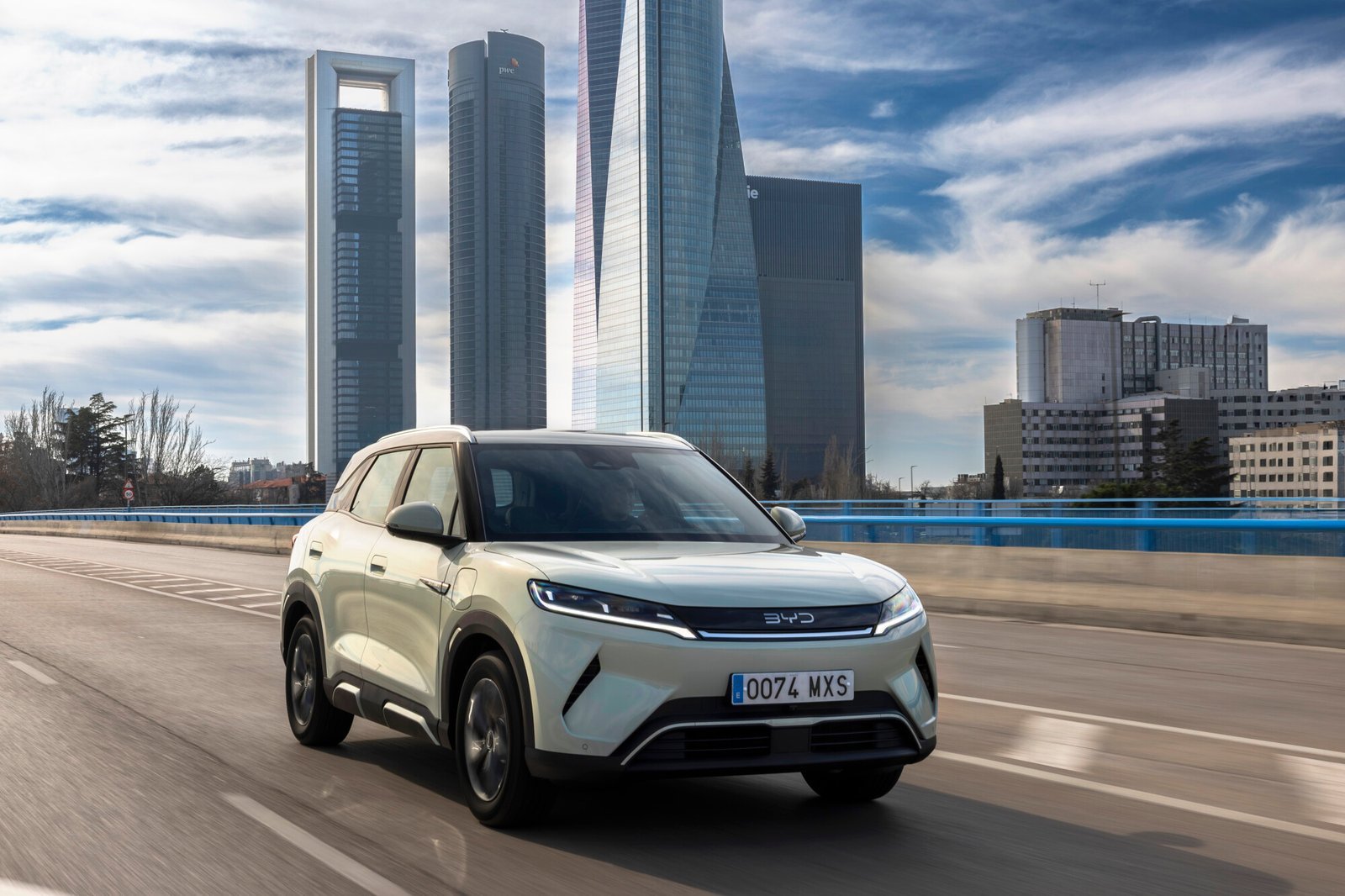
European-market BYD Atto 2. BYD documents the three-finger HVAC gesture for this model; confirm it in the current manual for your own car. Image source: BYD Media.
2. Ask “Hi BYD” to Handle Routine Cabin Controls
Many owners try the voice assistant once for navigation and then forget about it. On supported overseas vehicles, “Hi BYD” can do more than find an address. The European Atto 2 launch material, for example, lists climate and electric-window controls. Manuals for certain export models also list tasks such as media, calling through a paired phone, and seat functions when equipped.
The value is not novelty. It is keeping your hands on the wheel when the alternative would be searching through a touchscreen menu. Start with short, direct commands:
- “Hi BYD, set the temperature to 22 degrees.”
- “Hi BYD, increase the fan speed.”
- “Hi BYD, turn on the driver’s seat ventilation.”
- “Hi BYD, open the windows.”
Only use a command that is sensible for the conditions, and check the result rather than assuming the system understood you. Available languages, wake words, voice zones, and controllable functions vary. If a command works in an online video but not in your car, look for the voice-assistant settings and language pack in your own system.
3. Use the BYD App Before You Reach the Car
The BYD app is easiest to appreciate on a very hot or cold day. Compatible connected vehicles can provide remote controls such as locking, unlocking, and preparing the cabin before a journey. BYD Australia currently lists remote air-conditioning control, vehicle status, charging information, and—in applicable vehicles—seat or steering-wheel comfort controls. Exact controls vary by model, category, and region.
App setup is not always immediate at handover. The vehicle must be correctly activated and bound to the owner. BYD Europe’s owner guidance says remote operations use an operation password and that only one owner account can bind and control the car at a time. Instead of sharing the main login, the owner can use the authorization function to give a trusted family member or friend access where supported. Follow the dealer’s activation route for your country; the exact email, QR-code, and app steps are not global.
A sensible first-week setup is:
- Ask the dealer to confirm that connected services are activated for the vehicle.
- Bind the vehicle using the official process shown in your market’s app or infotainment system.
- Create the remote-control operation password.
- Test lock status and climate control while standing near the parked vehicle.
- Use authorized-user access for another driver rather than sharing the owner password.
Remote climate is about comfort, not a promise of extra driving range. It also consumes energy. Use it for an appropriate amount of time, make sure the car is safely parked, and follow the instructions shown in the app.
4. Schedule Charging Instead of Setting a Late-Night Alarm
If your electricity plan has cheaper off-peak hours, or you simply want charging to begin later, look for scheduled or reservation charging. On supported vehicles, you can connect the charging cable and have the car wait until the selected time before it starts AC charging.
The useful part is consistency: plug in when you arrive home, then let the vehicle follow the schedule. A typical setup looks like this:
- Park safely and confirm that the car and charging equipment are ready.
- Open the energy or charging settings in the vehicle. Use app scheduling only if your local app actually offers it.
- Choose the start time and, where offered, a repeat schedule.
- Connect the charging cable and verify that the screen shows a waiting or scheduled-charging status.
- Check once after the start time to confirm that charging actually began.
This function is confirmed in current European Dolphin and Dolphin Surf manuals, but do not assume every BYD uses the same charger logic. Those manuals state that reservation charging is intended for BYD-certified slow AC equipment, cannot run together with scheduled departure, and does not apply to DC charging. Your local manual, wall-box instructions, electricity tariff, and charging-station rules should decide the setup—not a generic online schedule.
5. Set Up the NFC or Digital Key Before You Need It
A key feature is most useful when it is ready before the physical fob is buried in a bag or left with another driver. Depending on the vehicle and market, a BYD may support an NFC key card, a compatible phone or wearable, or a digital key inside the BYD app.
BYD Europe describes its digital key as a way to unlock, lock, and start supported vehicles using smartphone authentication. The current European digital-key page lists iPhone, Apple Watch, selected Samsung Galaxy, and selected Google Pixel support and names supported European countries. Some vehicles also include an NFC key card. Other cars use Bluetooth digital-key functions. These are related technologies, not interchangeable promises.
Check three details before relying on it:
- Is your exact model, production date, and phone supported?
- Does the key use NFC, Bluetooth, cloud access, or a combination?
- How do you remove the key if you sell the phone, lose it, or give access to the wrong account?
Keep the physical key or approved backup available until you have tested entry, starting, and revocation. A digital key is a convenience feature, not a reason to ignore the manual’s emergency-entry procedure.
6. Turn a Compatible BYD Into a Portable Power Source With V2L
Vehicle-to-Load, usually shortened to V2L, allows a compatible BYD to supply AC power to external equipment through an approved adapter or built-in outlet. That can be genuinely useful for modest camping equipment, chargers, lighting, or suitable tools when a normal socket is unavailable.
The feature is easy to miss because the adapter may be stored separately and the controls can sit inside an energy-management menu. It is also one of the worst features to generalize. BYD’s own European FAQ says V2L availability varies by model and production date.
Before connecting anything, confirm:
- that your exact vehicle supports V2L;
- the approved adapter or outlet for your market;
- the maximum continuous and peak load stated in the manual;
- the battery reserve or discharge limit;
- whether the location and weather are suitable; and
- that cables will not create a trip, heat, moisture, or ventilation hazard.
Do not connect a building to the car through improvised wiring, and do not exceed the stated output. Appliances with motors or heating elements can draw much more power than their simple use suggests. If the device load is unclear, use a qualified electrician or the equipment manufacturer’s guidance.

7. Explore the Camera’s 3D and Transparent Views
New owners commonly use the rear camera and never open the full panoramic-view interface. On supported BYDs, the camera system may include selectable front, side, rear, top-down, 3D, or transparent-vehicle views. Current European Seal and Seal U manuals document transparent and 3D panoramic views. Automatic activation and indicator-linked views should be treated as separate, model-specific options rather than assumed from this guide.
The transparent view is a stitched visualization. It can make the area around the wheels easier to understand when edging past a curb or positioning the car in a narrow space. It does not provide a live X-ray view through the vehicle. Official BYD guidance warns that the image under the car may not align perfectly when speed or braking changes, and wide-angle cameras can distort how close an object appears.
Use the feature as an extra perspective, not as your only source of information. Keep the mirrors extended, make sure the camera lenses are clean, look through the windows, check the mirrors, and stop if the screen conflicts with what you can see directly.
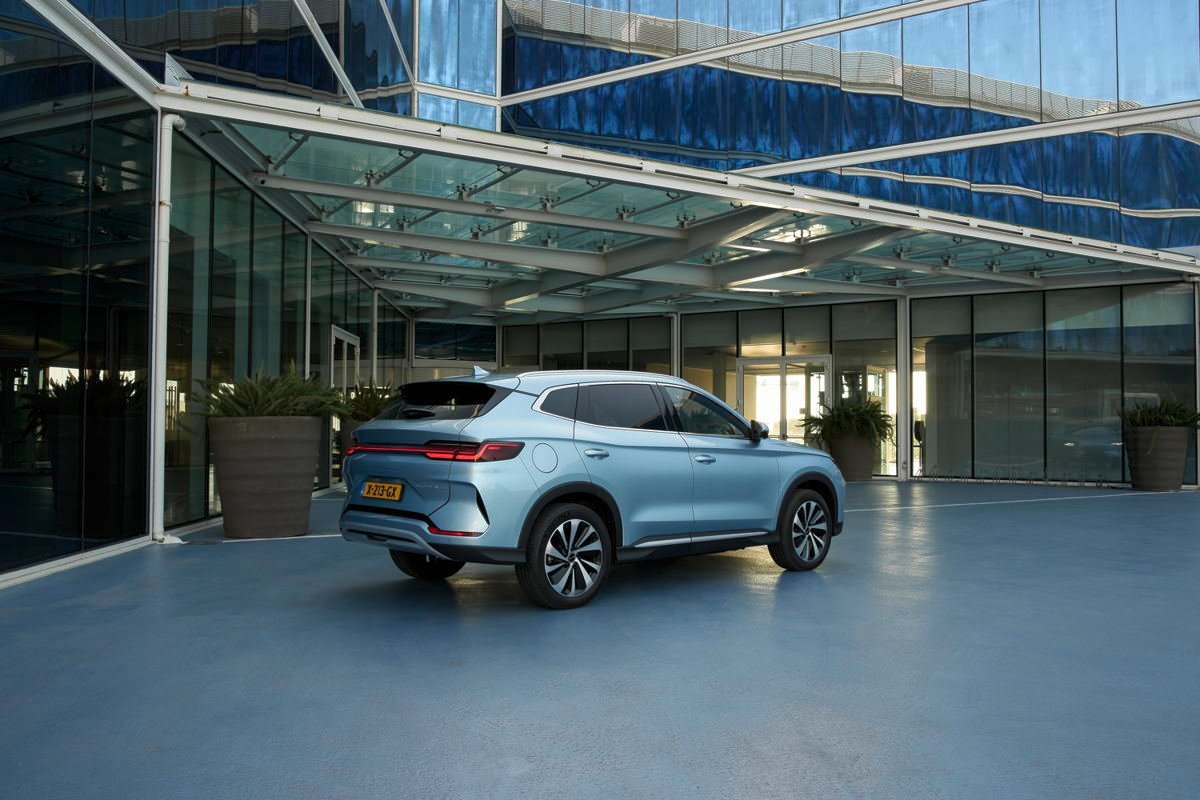
European-market BYD Seal U. 3D and transparent-camera functions remain vehicle- and configuration-specific. Image source: BYD Belgium press gallery.
A 10-Minute First-Week BYD Setup
You do not need to explore every menu on delivery day. Park somewhere safe and use this short sequence:
- Check for an available software update and read its notes before installing.
- Open the swipe-down panel and arrange your regular controls.
- Test the three-finger climate gesture if your manual supports it.
- Try two or three useful “Hi BYD” commands.
- Finish app binding and set up authorized access for another driver if needed.
- Review charging schedules and confirm one test session.
- Find the NFC/digital-key, V2L, and panoramic-camera pages in your manual.
That short tour will teach you more about daily ownership than randomly opening every setting. It also gives you a baseline: when an online tip does not match your vehicle, you will know where to verify it.
If you later replace or upgrade the center display, remember that camera views, climate controls, DiLink, phone projection, and vehicle settings may depend on more than the glass panel. Read our guide to BYD screen feature compatibility before ordering a different display.
When a BYD Needs an Exterior Part, Upgrade, or Confirmed OEM Component
Learning the vehicle’s software is useful; keeping the vehicle correctly matched after a repair or upgrade is just as important. YIROX supports a broad BYD parts range focused on vehicle-specific exterior styling parts, repair-use exterior replacement parts, and selected genuine OEM BYD components where the application can be confirmed.
For an appearance upgrade, start with the exact model, model year, bumper version, and sensor/camera layout before choosing a front lip, side skirts, rear diffuser, spoiler, grille, or complete styling set. Our BYD body kit guide and body-kit installation guide explain the fitment details that should be checked before ordering.
For collision repair or a damaged exterior component, use the YIROX exterior replacement-parts range as a starting point. If you need a selected genuine OEM BYD component—such as an infotainment-related part—share the VIN privately, original part number or label photo, model year, market, and the vehicle’s factory functions. That information makes it possible to confirm the requested application rather than relying on a model name alone.
Frequently Asked Questions
Do all BYD cars have the same hidden features?
No. Equipment and software differ by model, trim, country, production date, and software version. Confirm each function in the manual and specification for your exact vehicle.
Can I use V2L on every BYD?
No. BYD states that V2L availability varies by model and production date. You also need the approved output method and must stay within the limits in the vehicle manual.
Why does my BYD menu look different from screenshots online?
The other vehicle may use a different DiLink version, OTA update, screen size, model, trim, or regional configuration. Look for the function by name in your current system and local manual rather than following icon positions exactly.
Can more than one person use the BYD app for the same car?
BYD Europe states that one owner binds the vehicle, while the authorization function can give other users access where supported. Use that route instead of sharing the owner’s password.
Need Help Confirming a BYD Accessory or Screen?
Useful software features make one thing clear: a BYD accessory or replacement screen should be matched to the complete vehicle, not just the model badge. If you are comparing exterior styling parts, repair-use exterior components, selected genuine OEM BYD parts, or another vehicle-specific product, send YIROX the model, model year, trim, market, left- or right-hand-drive configuration, relevant photos, and VIN privately where required.
You can browse the YIROX BYD accessory range or contact YIROX for a fitment review. Availability and compatibility will be confirmed for the requested application before quoting.
Sources
- BYD Europe App Community and owner FAQ — app binding, remote-control password, authorization, and V2L availability qualification.
- BYD Digital Key in Europe — supported devices, countries, and setup instructions. Check this live page again before publishing because device and region availability can change.
- BYD Dolphin Owner’s Manual for Europe, RHD (English PDF) — reservation charging, scheduled departure, digital key, and operational warnings.
- BYD Dolphin Surf Owner’s Manual for Europe, LHD (English PDF) — reservation-charging paths and restrictions.
- BYD Seal Owner’s Manual for Europe, LHD (English PDF) — transparent panoramic-view operation and safety limitations.
- BYD introduces the Atto 2 in Europe — official voice-control and three-finger climate examples.
- BYD Australia app guide — current Australian description of remote app controls and service-availability qualification.
- Reddit r/BYD: Lesser-known feature discussion — owner questions used to identify confusing or overlooked functions; not used as sole proof for feature availability.